
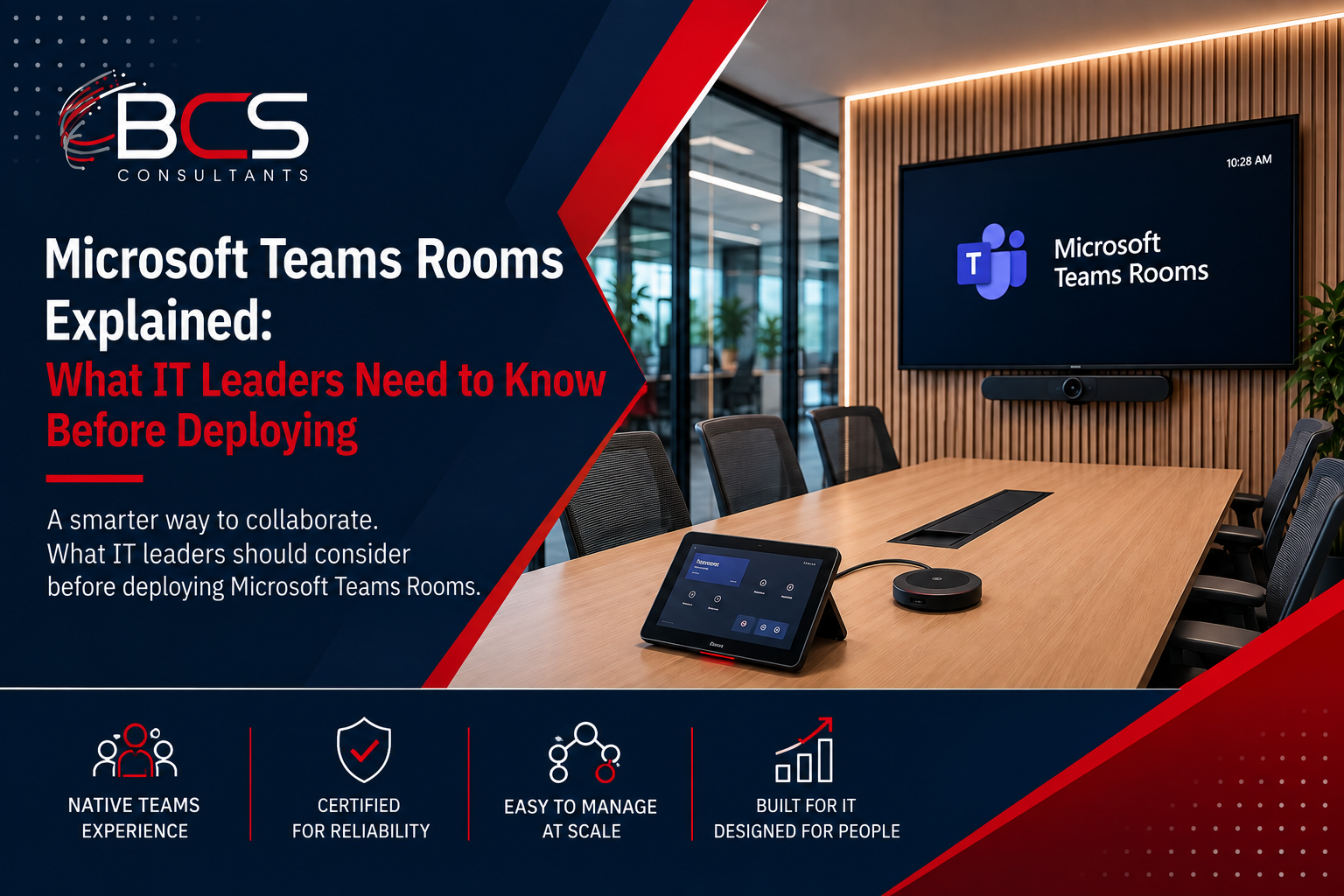
Microsoft Teams Rooms is not simply a version of Teams that runs on a conference room display. It is a fully managed hardware and software platform that Microsoft certifies, IT manages through the Teams Admin Center, and end users experience through a one-touch interface that is designed to start meetings without the friction of the standard laptop-based Teams experience.
For IT leaders responsible for deploying MTR across an organization, understanding the platform — what MTR certification means, what the licensing model looks like, what the network requirements are, and what the deployment process involves — is the prerequisite for a successful implementation. This guide covers those fundamentals.
What Microsoft Teams Rooms Certification Actually Means
Microsoft certifies specific hardware configurations — typically a codec device running a version of Windows or Android with the Teams Rooms app, paired with specific cameras, microphones, and displays — that have been tested to meet Microsoft's requirements for audio quality, video quality, one-touch meeting join, and interoperability.
A certified configuration means Microsoft and the hardware manufacturer have jointly committed to a support relationship for that combination: if a Teams update breaks something in the certified hardware, both parties are responsible for resolving it. For IT departments that have experienced the frustration of a software update breaking a conference room system that was working fine, the certification commitment matters.
Certified hardware appears in the Teams Admin Center — the same Microsoft 365 admin interface IT uses for user account management, Teams policies, and service health monitoring. IT can see device health status, firmware versions, and configuration of every certified Teams Room in the organization from a single console, without logging into a separate AV management platform.
Teams Rooms Basic vs. Teams Rooms Pro Licensing
Every Teams Room requires either a Teams Rooms Basic or Teams Rooms Pro license in addition to the hardware.
Teams Rooms Basic is available at no additional cost beyond the Microsoft 365 subscription and provides the core meeting experience: one-touch meeting join, calendar integration, and basic room management visibility in the Teams Admin Center. Teams Rooms Basic supports up to twenty-five rooms per organization and does not include advanced analytics, intelligent meeting recaps, or the full management capabilities of the Pro license.
Teams Rooms Pro is a paid per-room per-month add-on license and provides the full enterprise management experience: advanced device management and monitoring in the Teams Admin Center, intelligent meeting recaps and Copilot capabilities in the meeting room, front-row layout support for dual-screen rooms, and priority support. For organizations deploying more than twenty-five rooms or that need the advanced management capabilities, Teams Rooms Pro is the appropriate license.
BCS Consultants advises on license planning as part of every Teams Rooms deployment project, ensuring the right license tier is deployed for each room type.
Network Readiness Requirements for Microsoft Teams Rooms
MTR hardware has specific network requirements that must be verified before deployment. Unlike a laptop running the Teams desktop application, an MTR device is a purpose-built appliance that communicates with Microsoft's cloud services on a fixed set of network ports and protocols.
The specific network requirements include: outbound connectivity on required ports for the Teams service, quality of service (QoS) marking for audio and video traffic at the network switch level, sufficient bandwidth allocation for the number of concurrent video calls the network will support, and appropriate DNS configuration for Teams service discovery.
BCS Consultants conducts a network readiness assessment as part of every MTR deployment project, verifying that the network infrastructure meets Microsoft's requirements and configuring QoS at the switch level for each room on the deployment list.
Active Directory and Room Account Configuration
Each Teams Room requires a resource account in Azure Active Directory — a dedicated account for the room mailbox that the room system uses to receive meeting invitations and integrate with the organization's calendar. The resource account requires specific licensing, specific Exchange Online configuration for resource mailbox behavior, and Conditional Access policy configuration that allows the Teams Rooms application to authenticate without requiring multi-factor authentication at the device level.
BCS Consultants handles resource account configuration for every room as part of the deployment project, working with the client's IT team on the Active Directory and Azure AD configuration that falls within the client's administrative control.
The MTR Deployment Process
BCS's MTR deployment process begins with a room inventory and tier assignment: cataloging every meeting room in scope, classifying each by size and use case (huddle, medium conference, large conference, boardroom), and selecting the appropriate certified hardware configuration for each tier.
Hardware procurement, staging, and pre-configuration follow — we stage and configure all devices at our facility before delivering to the client site, verifying that software versions, Teams Rooms application configuration, and resource account connections are all functioning correctly before the installation team arrives on site. This staging step means that the on-site installation is primarily physical — mounting hardware, connecting displays and peripherals, running cabling — with minimal on-site configuration required.
Post-installation commissioning verifies that every room joins meetings correctly, that camera and audio are performing as expected, and that the room appears in the Teams Admin Center with the correct status and configuration.
Frequently Asked Questions
Can Teams Rooms hardware run Zoom Rooms instead of Teams Rooms?
Some certified hardware supports both Teams Rooms and Zoom Rooms — Logitech's Rally Bar series and several Poly devices support both platforms. Hardware that is specifically designed for Teams Rooms running Windows IoT typically cannot be converted to Zoom Rooms. BCS Consultants will verify platform compatibility during the hardware specification phase.
What happens to a Teams Room if the internet goes down?
Teams Rooms devices require internet connectivity to join Teams meetings. If the internet connection at a site is unavailable, the room cannot join Teams calls. However, the room's AV hardware — displays, camera, microphone — continues to function for local use. BCS Consultants recommends secondary internet path redundancy for conference rooms where continuous availability is critical.
How long does an MTR deployment take for a large organization?
The timeline depends on the number of rooms, site count, and network readiness. For a single large building deployment of twenty to fifty rooms with a prepared network and staged hardware, on-site installation can typically be completed in two to three days. Multi-building or multi-site enterprise rollouts are phased over a longer period.
Ready to get started? Plan your Teams Rooms deployment with BCS Consultants
